Search and column lineage
Search
Press / (or Ctrl+K, Cmd+K on a Mac) to open the search box. Type part of a
name or a description and OpenPipeline finds matching models, sources, seeds, and
columns. The best matches come first. Use the arrow keys and Enter, or click, to
pick one. Press Escape to close the box.
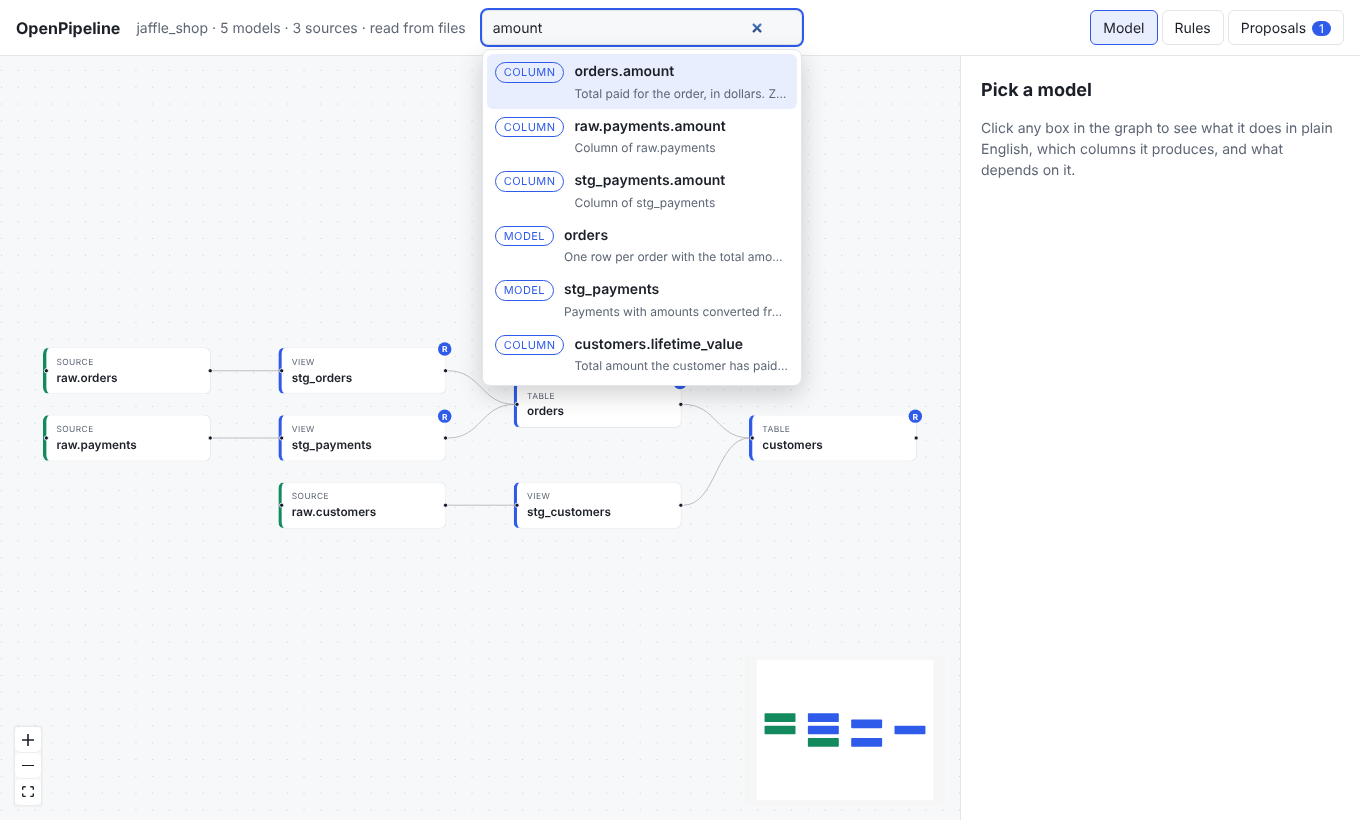
Picking a model or source opens it on the graph. Picking a column opens its model and traces the column.
Search is useful when you know a business word, such as "refund", but not which model holds it.
Column lineage
The graph shows which model feeds which. Column lineage goes one level deeper: it shows which columns a column is built from, and which columns use it.
- Select a model.
- In the Column lineage section, pick a column.
- The panel lists where the column comes from (upstream) and where it is used (downstream), nearest first and across every hop. The graph lights up only that path.
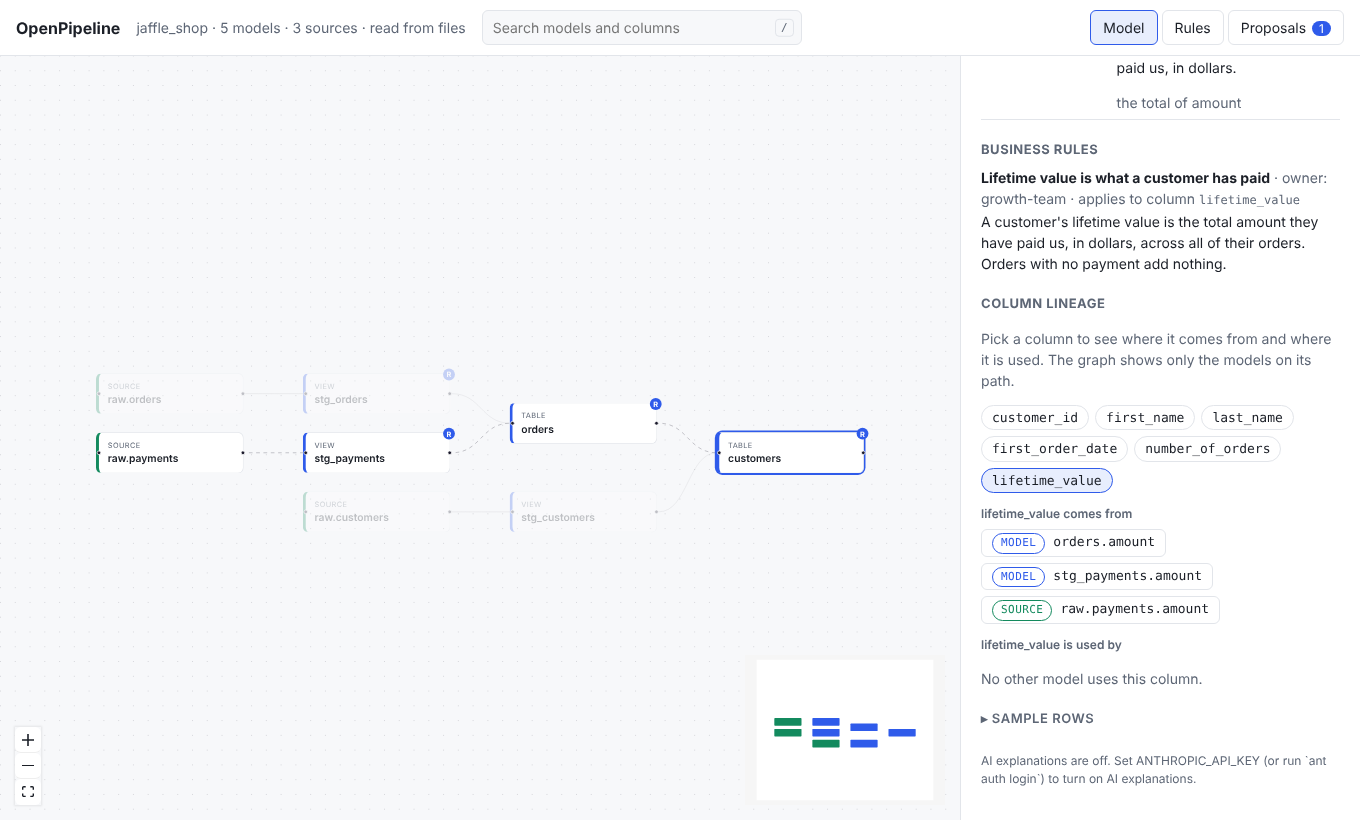
Click any column in the lists to jump to it. Click the selected column again to clear it.
This answers questions such as "if I rename amount in orders, what could
break?" and "where does lifetime_value really come from?".
It is built by reading your SQL, so it works without a warehouse.
On the command line
openpipeline lineage customers lifetime_value
openpipeline lineage customers lifetime_value --json
For agents
Agents have a search tool and a column_lineage tool. They are told to call
column_lineage before they rename, remove, or change the meaning of a column.
Everything under downstream may break. See
Working with AI agents.
HTTP
GET /api/search?q=revenue&limit=20
GET /api/models/{name}/columns
GET /api/models/{name}/columns/{column}/lineage
See the HTTP API.